
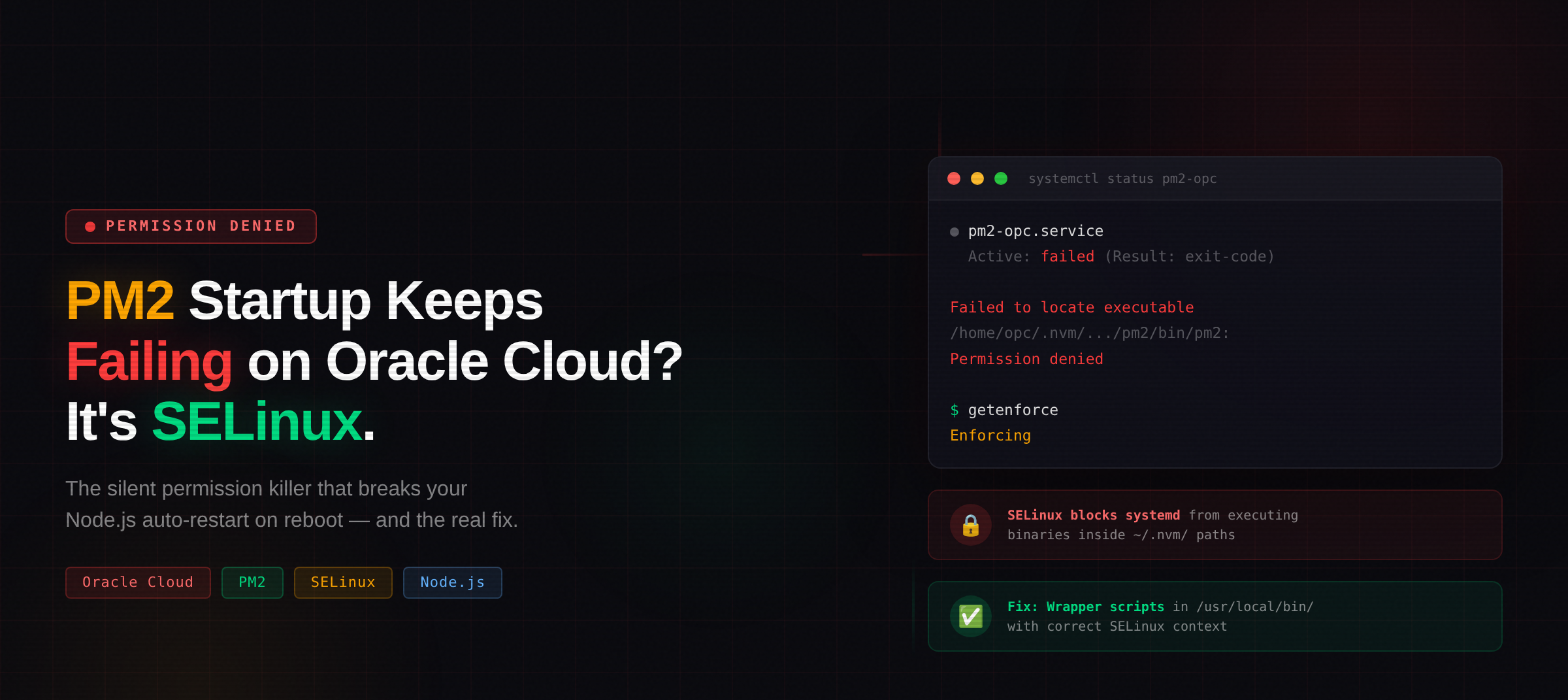
The silent permission killer that breaks your Node.js auto-restart on reboot
📹 Watch the Video Tutorial
Video coming soon — subscribe to TechScriptAid on YouTube to get notified!
🎯 The Problem
You’ve deployed your Node.js app on Oracle Cloud’s free tier. PM2 is running perfectly. You set up pm2 startup, pm2 save, everything looks green. Then the server reboots.
Your app is dead. PM2 never started.
You check systemctl status pm2-<user> and see:
Active: failed (Result: exit-code)
You dig into the journal logs:
pm2-opc.service: Failed to locate executable /home/opc/.nvm/versions/node/v20.20.0/lib/node_modules/pm2/bin/pm2: Permission denied
pm2-opc.service: Failed at step EXEC spawning ...pm2: Permission denied
Permission denied. But the file is rwxr-xr-x. You own it. You can run it manually. What’s going on?
The answer: SELinux.
🔍 Why This Happens
Oracle Cloud instances (Oracle Linux 8/9) run SELinux in Enforcing mode by default:
$ getenforce
Enforcing
When systemd starts your PM2 service, it tries to execute the PM2 binary. But that binary lives deep inside your home directory under ~/.nvm/. SELinux has strict policies about what systemd can execute — and files inside user home directories under NVM paths don’t have the right SELinux context.
The standard pm2 startup command generates a service file like this:
ExecStart=/home/opc/.nvm/versions/node/v20.20.0/lib/node_modules/pm2/bin/pm2 resurrect
SELinux blocks it. Every time. The file permissions are fine — it’s the SELinux security context that’s wrong.
⚠️ The Common “Fix” That’s Actually Bad
Many Stack Overflow answers suggest:
sudo setenforce 0 # DON'T DO THIS
This disables SELinux entirely. On a cloud server exposed to the internet, that’s a terrible idea. You lose a critical security layer.
✅ The Real Fix: Wrapper Scripts
Instead of fighting SELinux, work with it. Files in /usr/local/bin/ have the correct SELinux context for systemd execution. So we create wrapper scripts there.
Step 1: Create the Start Script
sudo bash -c 'cat > /usr/local/bin/pm2-start.sh << "EOF"
#!/bin/bash
export HOME=/home/opc
export PM2_HOME=/home/opc/.pm2
export NVM_DIR=/home/opc/.nvm
export PATH=/home/opc/.nvm/versions/node/v20.20.0/bin:$PATH

# IMPORTANT: cd to your app directory so dotenv finds .env
cd /home/opc/your-app-directory

/home/opc/.nvm/versions/node/v20.20.0/bin/node \
  /home/opc/.nvm/versions/node/v20.20.0/lib/node_modules/pm2/bin/pm2 \
  start server.js --name your-app --max-memory-restart 200M
EOF
chmod +x /usr/local/bin/pm2-start.sh'
Step 2: Create the Stop Script
sudo bash -c 'cat > /usr/local/bin/pm2-stop.sh << "EOF"
#!/bin/bash
export HOME=/home/opc
export PM2_HOME=/home/opc/.pm2
export PATH=/home/opc/.nvm/versions/node/v20.20.0/bin:$PATH

/home/opc/.nvm/versions/node/v20.20.0/bin/node \
  /home/opc/.nvm/versions/node/v20.20.0/lib/node_modules/pm2/bin/pm2 kill
EOF
chmod +x /usr/local/bin/pm2-stop.sh'
Step 3: Create the Reload Script
sudo bash -c 'cat > /usr/local/bin/pm2-reload.sh << "EOF"
#!/bin/bash
export HOME=/home/opc
export PM2_HOME=/home/opc/.pm2
export PATH=/home/opc/.nvm/versions/node/v20.20.0/bin:$PATH

/home/opc/.nvm/versions/node/v20.20.0/bin/node \
  /home/opc/.nvm/versions/node/v20.20.0/lib/node_modules/pm2/bin/pm2 reload all
EOF
chmod +x /usr/local/bin/pm2-reload.sh'
Step 4: Replace the Systemd Service
sudo bash -c 'cat > /etc/systemd/system/pm2-opc.service << "EOF"
[Unit]
Description=PM2 process manager
Documentation=https://pm2.keymetrics.io/
After=network.target

[Service]
Type=oneshot
RemainAfterExit=yes
User=opc
LimitNOFILE=infinity
LimitNPROC=infinity
LimitCORE=infinity
Environment=HOME=/home/opc
Environment=PM2_HOME=/home/opc/.pm2
Environment=PATH=/home/opc/.nvm/versions/node/v20.20.0/bin:/usr/local/bin:/usr/bin:/bin
Restart=on-failure
RestartSec=10

ExecStart=/usr/local/bin/pm2-start.sh
ExecReload=/usr/local/bin/pm2-reload.sh
ExecStop=/usr/local/bin/pm2-stop.sh

[Install]
WantedBy=multi-user.target
EOF'

sudo systemctl daemon-reload
sudo systemctl enable pm2-opc
Step 5: Test It
# Stop everything
sudo systemctl stop pm2-opc
sleep 2

# Start via systemd (simulates reboot)
sudo systemctl start pm2-opc
sleep 3

# Verify
systemctl status pm2-opc --no-pager
pm2 status
curl -s http://localhost:3000/health
You should see Active: active (exited) and your app running in PM2.
🐛 Two Gotchas That Will Bite You
Gotcha 1: Type=forking vs Type=oneshot
The default PM2 startup uses Type=forking with a PIDFile. SELinux also blocks reading PID files from user home directories. You'll see:
Can't convert PID files /home/opc/.pm2/pm2.pid O_PATH file descriptor to proper file descriptor: Permission denied
Using Type=oneshot with RemainAfterExit=yes avoids this entirely. The service starts PM2, PM2 daemonizes itself, and systemd just tracks that the start command succeeded.
Gotcha 2: pm2 resurrect Loses Your Working Directory
The default startup uses pm2 resurrect which restores processes from a dump file. But it doesn't preserve the working directory (cwd). If your app uses dotenv (or any relative file path), it won't find your .env file.
Your app will start, look healthy, but silently connect to localhost instead of your actual database. You'll get ECONNREFUSED errors and wonder why.
The fix is in the start script above: we cd into the app directory and use pm2 start instead of pm2 resurrect.
✅ Quick Verification Checklist
# 1. SELinux is still enforcing (good!)
getenforce
# Should output: Enforcing

# 2. Service is enabled for boot
systemctl is-enabled pm2-opc
# Should output: enabled

# 3. Service is currently active
systemctl is-active pm2-opc
# Should output: active

# 4. App is running
pm2 status
# Should show your app as "online"

# 5. Full reboot test (when you're ready)
sudo reboot
# After reconnecting:
pm2 status  # App should be running
💡 Why This Matters
Oracle Cloud's free tier is arguably the best free hosting available — you get a full ARM instance with up to 24GB RAM. But Oracle Linux's SELinux defaults trip up almost everyone deploying Node.js apps with NVM + PM2.
The typical journey is: app works manually, pm2 startup generates the service, reboot kills everything, hours of debugging. This article exists so that journey takes 5 minutes instead.
Adjust the username (opc), Node version, and app paths to match your setup, and you're good to go.
🎓 Conclusion
SELinux on Oracle Cloud isn't your enemy — it's doing its job protecting your server. The problem is that pm2 startup wasn't designed with SELinux-enforced environments in mind. By creating wrapper scripts in /usr/local/bin/ (which has the correct SELinux context) and using Type=oneshot in systemd, you get reliable auto-restart on reboot without compromising security.
The two "gotchas" — PID file permission denial and the silent resurrect + dotenv failure — are what make this problem especially frustrating. Now you know both, and you can deploy with confidence.
📺 Want more technical tutorials?
Subscribe to TechScriptAid on YouTube for weekly content on enterprise development, .NET, DevOps, and modern architecture patterns!